Back to Blog

Chrome Helper Eating Memory on Mac: How to Find the Tab or Extension Behind It

Eight Google Chrome Helper entries each eating gigabytes of RAM? Same on Safari Web Content? Each helper holds one tab, cross-site frame, extension, or browser service — learn how to identify the right one and close it.

You open Activity Monitor because your Mac feels short on memory, and the Memory tab is dominated by a stack of entries called Google Chrome Helper (Renderer) — eight of them, twelve, sometimes twenty, each chewing 500 MB to 2 GB. Or you are on Safari and the same picture shows up under Safari Web Content. Killing them at random is a recipe for losing whatever tab you were actually using. This guide explains why modern browsers run dozens of helper processes, and — more importantly — how to map a specific helper back to the tab, site, or extension it represents so you can close the right one.

Quick Answer

Modern browsers use a multi-process architecture: one process for the main UI, plus a separate helper process for each tab, each cross-site iframe inside a tab, each extension, and a few browser-wide services (GPU, network). So Google Chrome Helper (Renderer) at 1.5 GB is not a bug — it is one tab, one cross-site frame, one extension, or one browser service holding 1.5 GB. The same is true of Safari Web Content, Microsoft Edge Helper, Arc Helper, Brave Browser Helper, and so on. High memory is usually a heavy web app (Gmail, Google Docs, Figma, Slack web, ChatGPT, Claude), a streaming video or WebGL tab you forgot about, or an extension with a memory leak.

The fastest path to finding the culprit:

  1. For Chrome / Edge / Arc / Brave / Vivaldi / Opera: open the browser’s built-in task manager from the Window menu → Task Manager (or via the browser’s main menu → More Tools → Task Manager on some Chromium builds). The Shift+Esc shortcut works on Windows and Linux, but is unreliable on macOS — use the menu path. It lists every tab and extension with the tab title or extension name, sorted by memory. This is the only built-in tool that maps a process directly to a tab title.
  2. For Safari: there is no equivalent per-tab task manager. Use macOS’s own Activity Monitor → Memory tab to see the Safari Web Content entries — you can confirm a heavy one exists but cannot tell which tab is which. Closing tabs one at a time is the practical fallback.
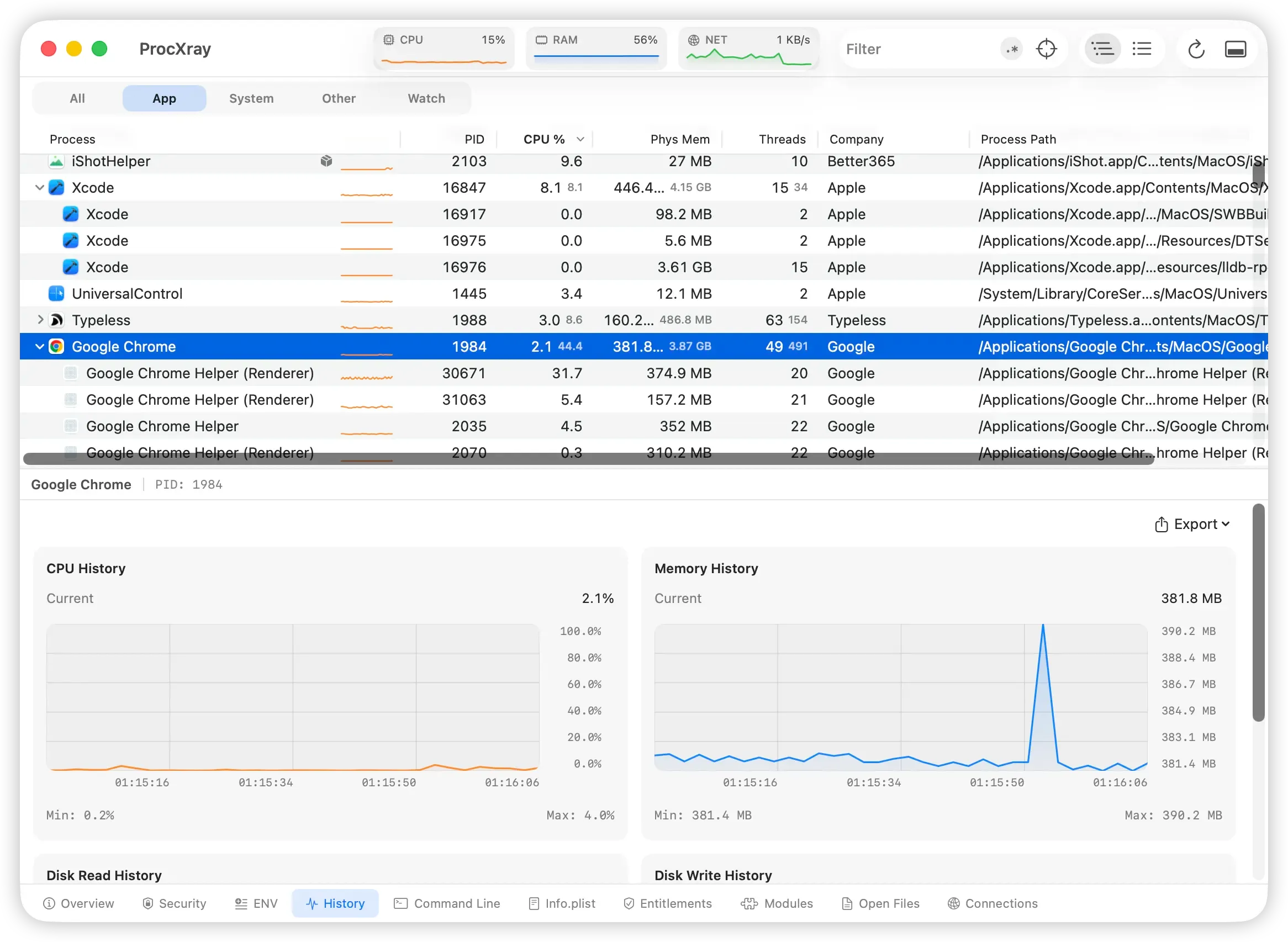
  3. For more than one browser at once, or to spot leaks that grew over hours: ProcXray sorts processes from every browser by memory in a single view, exposes each helper’s launch arguments (so you can tell renderer / GPU / extension-process / utility apart at a glance), and gives you per-process memory history. It does not show tab titles — for that, the browser’s own task manager (above) is still the right first stop.

What Is Google Chrome Helper (and Safari Web Content)?

Web browsers haven’t been single-process programs in over a decade. Every modern browser splits its work into several specialized processes for security isolation (one tab cannot read another tab’s memory) and crash containment (one tab crashing doesn’t take down the whole browser).

Chrome and Chromium-based browsers (Chrome, Edge, Arc, Brave, Vivaldi, Opera) all use roughly the same model. On macOS, you will see:

The exact names differ slightly per browser (Edge uses “Microsoft Edge Helper”, Brave uses “Brave Browser Helper”, Arc uses “Arc Helper”), but the architecture is identical.

Safari uses Apple’s WebKit and its own naming:

In every case, the rule is the same: a “Helper (Renderer)” or “Web Content” entry corresponds to one tab, one cross-site frame, one extension, or one browser service. If one shows 2 GB of memory, one of those things is holding 2 GB.

A note on the percentages: in Activity Monitor, 100% CPU means the equivalent of one full CPU core. On a multi-core Mac, a single helper can report well above 100%. The same per-helper view applies to memory — each line is independent.

The Reframe: A Helper Is a Renderer, Usually for a Tab

The single most useful reframe for this problem is:

A Chrome Helper (Renderer) is not a generic “Chrome process” — it is a specific renderer, usually for one tab, but possibly for one cross-site iframe inside a tab, or for one extension. The diagnostic question is “which one?”

Sorting helpers by memory is mostly sorting tabs by memory — but with caveats. Activity Monitor shows you a list of identical-looking “Google Chrome Helper (Renderer)” entries with no obvious way to tell which one is your Gmail tab and which one is that YouTube tab you forgot to close two days ago.

Three things make this harder than it sounds:

The rest of this article is about mapping helpers to the right place efficiently.

What Triggers High Memory in Browser Helpers

Seven common causes, roughly in order of frequency:

1. Heavy web apps

The single biggest source. Gmail, Google Docs, Google Sheets, Figma, Notion, Linear, Slack web, Discord web, Microsoft 365 web apps, ChatGPT, Claude, and any chat or AI tool with a long-running web session routinely sit at 500 MB to several GB per tab after a few hours of use. They cache attachments, message history, document state, and pre-rendered UI in memory.

2. Streaming video and music in background tabs

YouTube, Twitch, Netflix (browser), Spotify web, Apple Music web — each is several hundred MB while playing, and they may hold a sizable buffer in memory even when paused.

3. WebGL, canvas, and three-dimensional content

three.js scenes, browser-based AI image generation (Stable Diffusion, Midjourney web), 3-D map viewers (Google Maps with terrain, Mapbox demos), browser games, and CAD-in-the-browser tools all allocate large GPU and CPU buffers.

4. Extensions with leaks or unbounded caches

Old ad blockers, tab managers, screenshot tools, and “AI assistant” extensions are frequent offenders. An extension that holds a reference to every tab it has ever seen will grow forever. In Chrome each extension also runs in its own helper process — so a leaky extension shows up as a steadily growing helper that never goes down even when you close tabs.

5. Forgotten tabs

The most embarrassing source. Eighty open tabs accumulated over a week, half of them with web apps still running, each holding a few hundred MB. The browser does not automatically reclaim them unless you have Memory Saver / Sleeping Tabs enabled.

6. A crashed tab that did not release memory

Occasionally a helper hangs in a state where the tab is dead but the process has not exited. The memory stays allocated until you kill the helper or restart the browser.

7. A browser or extension update with a regression

Most major browsers ship a memory regression at some point — usually fixed within a release or two. If memory use suddenly worsens right after an update and matches reports from other users, this is the cause.

How to Find the Real Culprit

Activity Monitor’s Memory tab is the natural starting point, but it shows helpers as identical-looking entries with no tab mapping. You need a way to go from a high-memory helper to the page that owns it.

Step 1: For Chromium-based browsers, open the built-in task manager

For Chrome, Edge, Arc, Brave, Vivaldi, and Opera, this is the first stop and resolves most cases. On macOS the reliable path is Window menu → Task Manager (some browsers also expose it under the main menu → More Tools → Task Manager). The Shift+Esc shortcut from Windows and Linux is unreliable on Mac, so don’t rely on it.

You get a list of every tab, extension, and helper with the tab title or extension name, sorted by memory. Select a row and click End Process to end that tab, extension, or helper process — closing a tab row closes the tab; closing an extension row stops that extension; closing a helper-only row terminates the process (the browser respawns service helpers automatically).

This is the only built-in tool on macOS that maps a helper process directly to a tab title.

Step 2: For Safari, fall back to macOS Activity Monitor

Safari does not ship an equivalent of Chrome’s per-tab task manager. The practical options are:

There is no built-in cross-tab memory ranking in Safari — this is a real limitation of the browser, not an oversight in this guide.

Step 3: Use ProcXray when you need cross-browser visibility or historical data

ProcXray helps in three situations the built-in task managers do not:

The features that matter for this problem:

For a fuller comparison of where Activity Monitor falls short, see ProcXray vs Activity Monitor.

Step 4: A/B test by closing suspect tabs

Once you have a hypothesis — a specific tab, extension, or site — close it and watch the helper exit. The memory it was holding returns to the system within a few seconds. If memory does not drop, the helper you closed wasn’t actually the culprit; try the next one. This is the only reliable way to narrow down Safari tabs, since Safari has no built-in cross-tab ranking.

Step-by-Step Fixes

Apply in order — cheapest, least disruptive first.

1. Close the offending tab via the browser’s task manager

This is the highest-leverage fix. In Chrome / Edge / Arc / Brave on macOS: Window menu → Task Manager → sort by memory → select the heavy row → End Process. The tab closes (or, for an extension or service row, that process ends); you can re-open a closed tab from history if you needed it.

2. Restart the offending tab without losing your work

Sometimes you need the tab but a long-running web app has grown unreasonably. Right-click the tab → “Reload” reloads the page in the same helper. To get a fresh helper, close and re-open the tab from recently-closed history. In Safari, ⌘W then ⌘Z (Undo Close Tab) reopens it cleanly.

3. Disable a leaky extension

If ProcXray’s Command Line view showed an extension ID at the top of memory use, disable that extension. In Chrome: chrome://extensions. In Safari: Settings → Extensions. Watch the helper’s memory drop within seconds. If memory returns to normal, the extension was the cause; consider replacing it.

4. Enable the browser’s tab-hibernation feature

This converts “100 idle tabs holding 30 GB” into “100 visible tabs holding a few hundred MB”. The trade-off is one extra page load when you revisit.

5. Restart the browser

A clean restart resets every helper and reclaims any memory that was held by crashed or leaked helpers. The fastest correction when ProcXray’s history shows a leak but you can’t identify the specific source.

6. Update the browser and your extensions

If memory use changed sharply after a recent update, check for a follow-up release. Chrome, Edge, Arc, and Brave update automatically but require a restart to take effect — check the menu for “Relaunch to update”.

7. Last resort: log out and back in, or restart the Mac

Browser helpers should never persist across a user session, but if everything else fails, a log-out re-creates the environment cleanly without a full restart.

For broader Mac memory triage when browsers aren’t the only suspect, see how to fix a Mac running slow by killing the right processes.

FAQ

Why are there so many Google Chrome Helper processes?

One per tab, one per site frame (for cross-site iframes), one per extension, plus a GPU helper and a network helper. Twenty open tabs with a few extensions easily produces twenty-five to thirty helpers. This is by design — security isolation requires it — and is not a sign of a problem on its own.

Can I kill an individual Helper safely?

Yes. Closing a helper from Activity Monitor or via kill on the terminal is equivalent to that tab crashing. Chrome shows the tab with a “He’s dead, Jim” / “Aw, Snap!” page; clicking Reload restores it. You will lose whatever was unsaved (form input, in-progress chat messages). The browser itself stays running.

Does Safari really use less RAM than Chrome?

Often, yes — Safari is more aggressive about throttling background tabs, releases memory faster when tabs lose focus, and uses macOS’s compressed memory more eagerly. The gap is real but smaller than memes suggest, and depends heavily on which web apps you use. A Chrome window with five idle tabs may use less memory than a Safari window with the same five tabs full of active video.

How do I tell which Helper is which tab without ProcXray?

For Chromium-based browsers (Chrome, Edge, Arc, Brave, etc.), the browser’s built-in task manager (Window menu → Task Manager on macOS) maps tab titles to processes and is the only built-in macOS tool that does so — it should be your first stop, with or without ProcXray. ProcXray complements it with cross-browser visibility, historical memory data for leak detection, and the helper subtype (renderer vs GPU vs extension-process). Safari has no equivalent built-in mapping at all — for Safari, A/B closing tabs is the practical fallback.

Why does memory keep growing even after closing tabs?

Three possible reasons. First, the helper may take several seconds to exit after the tab closes — wait 10–20 seconds before drawing conclusions. Second, an extension’s helper persists across tabs, so closing tabs does not affect extension memory. Third, an actual leak in the browser or an extension: memory grows over time even with no new tabs. Use ProcXray’s Resource History to confirm a leak and the Command Line view to pin down which process is leaking.

Sources and References


Download ProcXray free → — sort browser helpers across Chrome, Safari, Edge, and Arc by memory in one view, see each helper’s launch arguments and history, and catch leaks early. macOS Sonoma+, Apple Silicon & Intel.