ProcXray · Menu bar monitoring
A Mac menu bar process monitor.
A closer look when you need it.
Keep CPU, memory, GPU, network, and disk activity in view. When something spikes, open the dashboard, find a busy process, and inspect it in ProcXray.
macOS 14+ · Apple Silicon and Intel · 14-day premium trial
CPU & GPU
Keep system load visible while you work. Open the dashboard to see recent trends.
Memory
Check used and total memory, memory pressure, and swap usage in the dashboard.
Network & disk
Follow system network traffic and disk activity without keeping the main window open.
SETUP
Choose what stays in view.
The status item is configurable. The dashboard gives you the wider picture when you click it.
- Open ProcXray Settings → Menu Bar and enable Show stats in menu bar.
- Select the metrics you want: CPU, Memory, GPU, Network, Disk. Keep at least one selected.
- Click the menu bar item to open the dashboard. It shows all five metric groups, even if you display fewer in the status item.
- Use Settings → Refresh → Interval to choose 1, 2, 5, or 10 seconds. Background process checks use a reduced cadence when the main window is hidden.
FROM SYSTEM LOAD TO A SPECIFIC PROCESS
Find the process worth investigating.
Switch Top Processes between CPU, Memory, GPU, and Disk. The dashboard lists up to five active entries for the selected metric. Network figures describe system traffic; they are not a per-process network ranking.
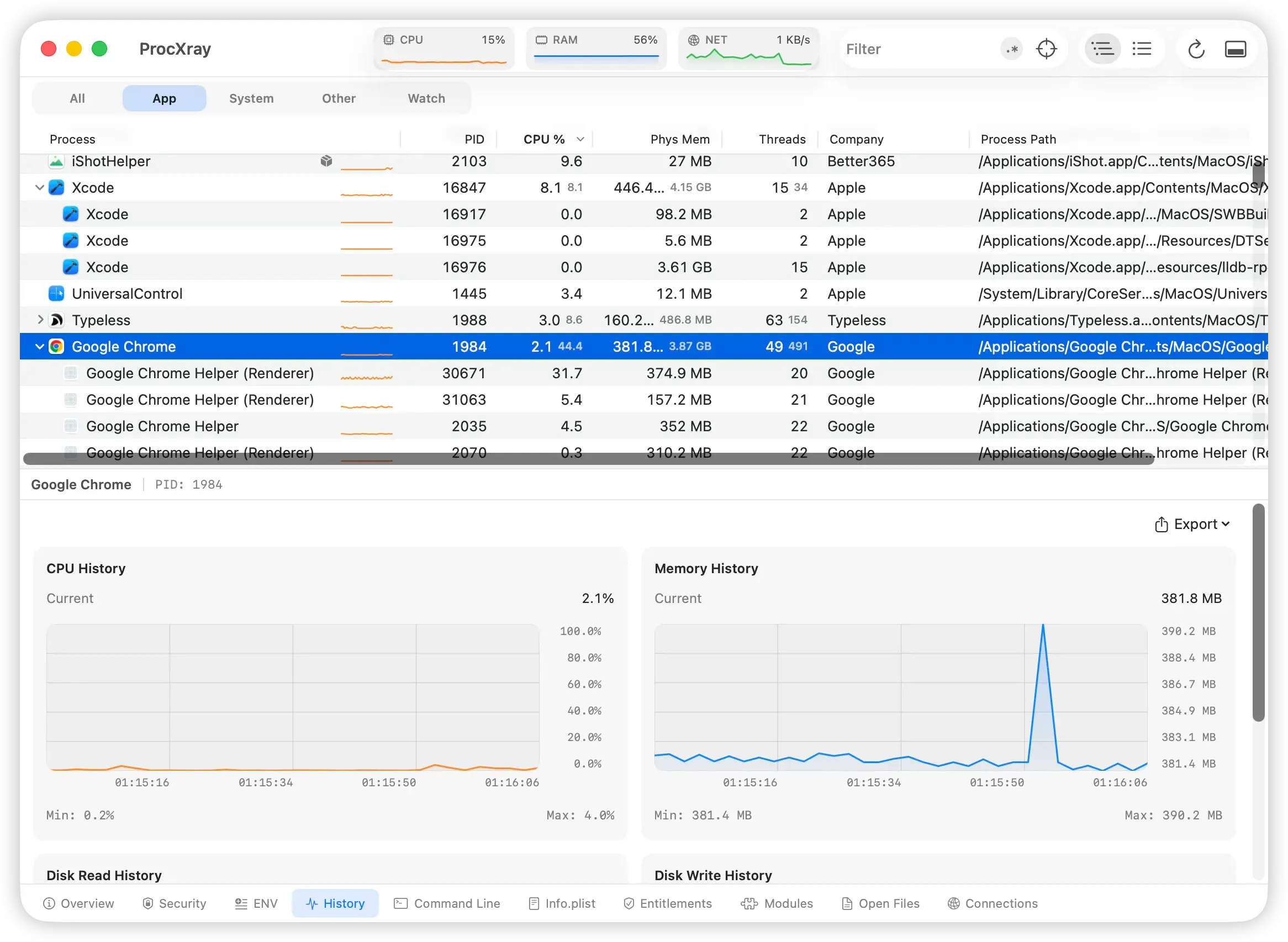
Hover over a process and choose Show in ProcXray, or double-click its row, to inspect it in the main window. Use its details and recorded history to decide what to investigate next.
WATCH & ALERTS
Know when a watched process needs attention.
Set start/exit notifications or sustained CPU, memory, and GPU thresholds for a PID, app, or executable. The menu bar dashboard shows up to three recent Watch events from the last 24 hours; choose Show All to open the Watch list.
Keep ProcXray running for monitoring. Persistent Watch targets retain their configuration across app restarts; they do not keep checking after you quit ProcXray.
Set up process alerts on Mac →Before you choose
Does it work with the main window hidden?
Yes, while ProcXray is running. System metrics continue to update. Process sampling is reduced in the background and responds to Watch and dashboard activity, so you should not expect continuous history for every unwatched process while the window is hidden.
Can it capture every process or file event?
No. This is a resource monitor and process inspector. A process that starts and exits between samples can be missed. The charts are not a complete process-execution or file-operation trace.
How does it compare with Activity Monitor?
Activity Monitor is a useful built-in choice for resource checks, a process tree, and open files. ProcXray combines a configurable menu bar dashboard with deeper inspection and Watch alerts. Read the Activity Monitor comparison or the Process Explorer for Mac guide to compare workflows.
Try it with your everyday workload.
Basic features are free. Premium features have a 14-day trial; a lifetime license costs $15 once. See pricing and the 1.3.5 release notes.
Download for Mac →