To find the process listening on TCP port 3000 on your Mac, run:
lsof -nP -iTCP:3000 -sTCP:LISTENReplace 3000 with your port, such as 8080. Read the PID column, then check the process before deciding whether to stop it. This is useful when a development server reports “address already in use.”
Read the listener result
-nP keeps addresses and ports numeric. -iTCP:3000 selects TCP sockets involving that port; -sTCP:LISTEN narrows the result to listeners. Without the state filter, you may also see connections involving a remote port, rather than the local server you meant to find. The options are documented in the lsof manual.
For example, a row with PID 1234 and 127.0.0.1:3000 (LISTEN) points to a local listener. These values are illustrative, not output captured from your Mac. Multiple rows can refer to the same process, so inspect the PID rather than counting rows as separate applications.
Get its command and parent PID:
ps -ww -p 1234 -o pid,ppid,user,commandUse the PID from your own result. If it belongs to a server you started in Terminal, return to that terminal and stop the server normally. If another tool manages it, use that tool’s stop command or change your development port. A service that restarts immediately needs its supervisor or launch configuration checked; repeatedly killing its PID does not resolve that cause.
Other useful port checks
| Question | Command |
|---|---|
| Which TCP ports are listening? | lsof -nP -iTCP -sTCP:LISTEN |
| Which sockets involve UDP port 5353? | lsof -nP -iUDP:5353 |
| Which network sockets belong to PID 1234? | lsof -nP -a -p 1234 -i |
| Which files does that process have open? | lsof -p 1234 |
The -a in the per-process network command intersects the PID and network filters. UDP does not use TCP’s LISTEN state; inspect its local endpoint. Check man lsof for the options on your installed macOS version.
If the listener query returns nothing, reproduce the failure and check again. Confirm the port and protocol, and consider whether the error came from a container or remote machine rather than the Mac host. For a process owned by another account, an administrator can retry the same read-only query with sudo; permissions can still limit what is visible.
Inspect the process in a Mac GUI
ProcXray’s Connections and Open Files tabs provide a GUI workflow for inspecting a known process. Start with the PID from lsof; the process-list search is not a global port search.
- Find and select that PID in ProcXray. Verify its executable path and Command Line so you do not confuse similarly named Node or Python processes.
- Open Connections. Read Type, Local, Remote, and State. The tab’s search can narrow the displayed endpoints or states.
- Open Open Files to inspect path-backed file descriptors. Search for a project directory or file name if you want more context about the workload.
- If the process keeps returning, inspect its parent process before changing anything.
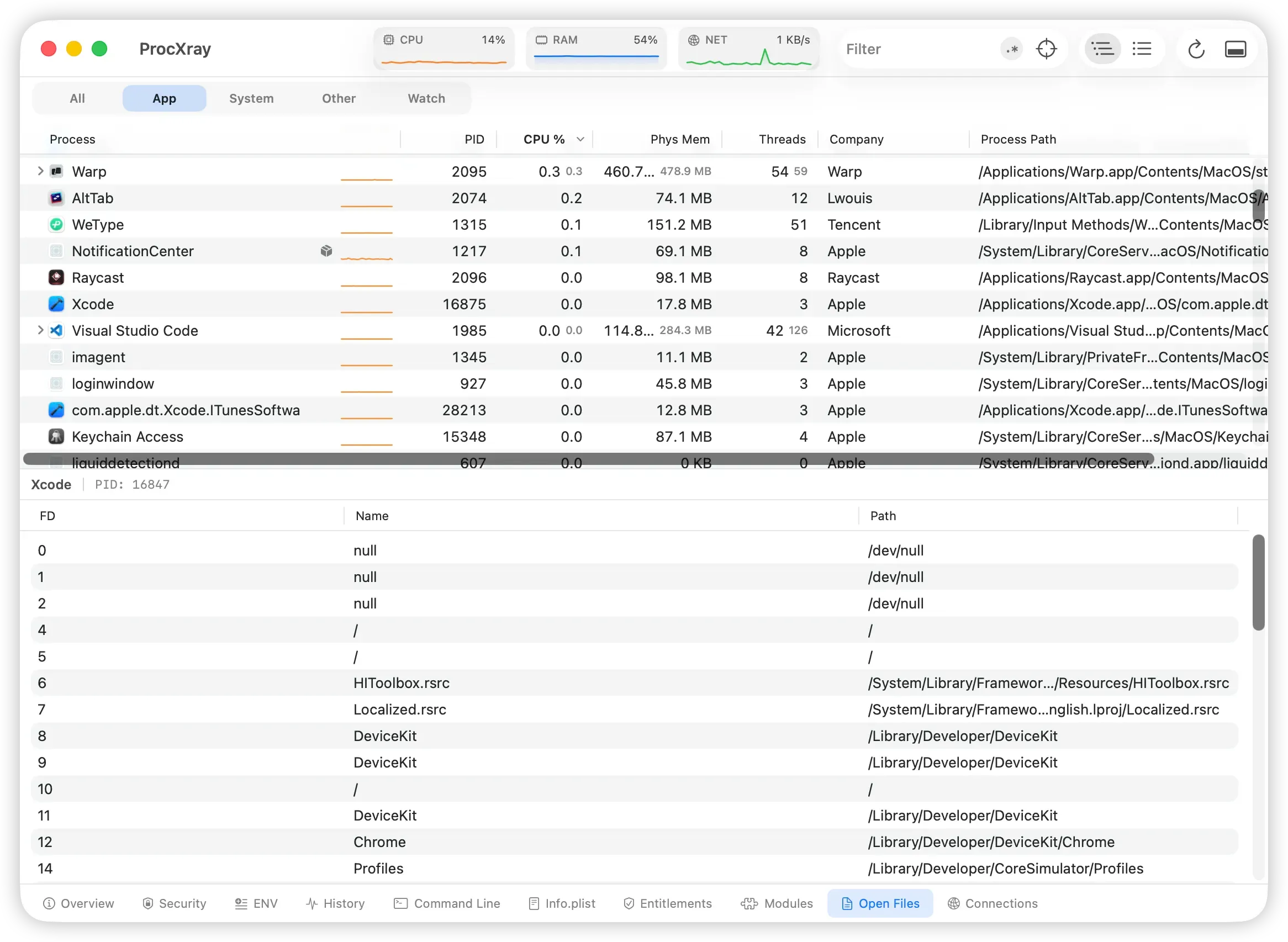
Connections and Open Files are premium tabs, available during the trial. See current pricing. Available details depend on macOS permissions and the target; an empty result is not proof that the process has never used a file or socket.
Open files are not a history of file access
lsof and ProcXray’s Open Files view help answer what is open at the time of inspection. If you need to see a file being opened and closed during a failed operation, use an event-oriented workflow instead. The Procmon for Mac guide explains that distinction.
For broader inspection options, read Process Explorer for Mac. If the server has the wrong configuration after restarting, compare its launch environment.