A loud fan and a warm case are reasons to investigate. Background work may be responsible, but room temperature, blocked ventilation, and hardware faults can also contribute. This guide starts with process checks and explains when to investigate cooling instead.
Quick Answer
Sustained CPU or GPU work often makes a Mac warmer and increases fan speed on models with fans. Fan noise alone does not prove a fault or rule one out. Check the workload, ventilation, and surroundings before changing fan settings. Persistent noise at low load, rattling, or cooling problems warrant further hardware checks.
The fastest diagnostic:
- Open Activity Monitor → CPU, sort by % CPU, and watch for sustained activity for a minute or two. Note the process name and whether it is a user app or a system process; a single percentage is not a universal overheating threshold.
- Open Energy to compare apps’ current Energy Impact, a relative measure rather than a temperature reading. On Mac laptops, 12 hr Power also shows average energy impact over the last 12 hours or since startup if shorter. Only that column is laptop-specific; the Energy pane is also available on desktop Macs.
- If CPU load is low, check GPU activity and brief workload bursts, then room temperature and ventilation. If the fan remains unusually loud at idle, investigate cooling or hardware faults as well.
The most common culprits, in rough order of how often they appear in real cases:
- A browser tab or extension burning CPU (a runaway script, a leaked WebGL canvas, a misbehaving ad) — see Chrome Helper Eating Memory on Mac for how to map a helper back to a tab.
WindowServerpinned at high CPU due to a misbehaving graphics-heavy app or a stuck display configuration — see WindowServer High CPU on Mac.mds/mds_storesreindexing Spotlight after a large file change or a freshly restored backup — see mds_stores High CPU on Mac.photoanalysisdrunning media analysis on a freshly synced Photos library (faces, scenes, object detection).kernel_tasktaking a large CPU share — this is macOS deliberately limiting heat, not causing it. The real cause is somewhere else (often something heating the SoC, or a charger / USB-C accessory problem).- A background task you forgot about: a video encode in HandBrake, a virtual machine, a Time Machine backup, a build job, a Docker daemon, a Zoom screen-share in another desktop.
The rest of this guide is about how to walk down this list efficiently when the cause isn’t obvious from one look at Activity Monitor.
Why the Fan Runs: Heat Is a Symptom, Not a Cause
Mac fans are controlled by the SMC (System Management Controller) on Intel Macs and equivalent firmware on Apple Silicon. The fan curve is driven by temperature sensors, not directly by CPU usage — but the two are tightly correlated, because sustained CPU or GPU load is the dominant source of heat in a modern laptop. The chain is:
A process runs hot → CPU or GPU package temperature rises → the SMC raises fan RPM to move more air across the heatsink → if temperature still climbs, the SoC throttles (slows itself down) → in extreme cases the system shuts down.
Three things follow from this:
- Fan speed commonly rises to cool a busy Mac. Noise by itself does not establish that cooling is working correctly. Check the cause before overriding the fan curve.
- If CPU load is low, check GPU activity and brief workload bursts, then room temperature and ventilation. If the fan remains unusually loud at idle, investigate cooling or hardware faults as well.
kernel_taskat high CPU is the thermal-protection system doing its job. macOS deliberately schedules synthetic load onkernel_taskto take CPU time away from heavy processes and reduce heat. If you seekernel_taskpinned high, the question is “what is heating the SoC?” — not “why is kernel_task using CPU?”. Common answers: a hot charger, a USB-C accessory that confuses the power controller, ambient heat, or another process running a sustained heavy load that’s already pushed temperatures past a safety threshold.
On Apple Silicon Macs without a fan (MacBook Air M1/M2/M3), the same chain ends in throttling rather than fan noise — the Mac silently slows down instead. The diagnostic is identical: find the process burning the most.
What Triggers a Mac to Run Hot
Seven common causes, roughly in order of how often they show up:
1. A browser tab or extension running away
By a wide margin the most common cause on a normal user’s Mac. A single tab with a runaway JavaScript loop, a leaked WebGL canvas, a video re-encoding in software (because hardware decode failed), or a malicious advertisement can sustain a whole CPU core at 100%. Modern browsers split tabs into separate helper processes, so this shows up in Activity Monitor as Google Chrome Helper (Renderer), Safari Web Content, Microsoft Edge Helper, etc. — not as Chrome or Safari themselves. See Chrome Helper Eating Memory on Mac for how to map a helper back to the tab or extension.
2. WindowServer spinning on a misbehaving graphics path
WindowServer composes everything you see on screen. When a graphics-heavy app, a stuck animation, an external display in an awkward configuration, or a buggy GPU driver path causes it to redo work continuously, WindowServer can pin a core or two while the GPU draws constantly. The chassis heats up even though no user app looks particularly busy. See WindowServer High CPU on Mac for the full triage path.
3. Spotlight reindexing (mds, mds_stores, mdworker)
After a macOS update, a large file move, a freshly restored Time Machine backup, or a newly mounted external drive, Spotlight rebuilds its index. The relevant processes are mds, mds_stores, mdworker, and mdworker_shared. They can each burn one or more CPU cores for tens of minutes, occasionally hours on a large drive. The system gets hot, fans spin, and the workload is real but temporary. See mds_stores High CPU on Mac.
4. Photos library analysis (photoanalysisd, mediaanalysisd)
After importing or syncing a large number of photos or videos, macOS runs face recognition, scene classification, and object detection in the background. The processes — photoanalysisd and mediaanalysisd — are designed to throttle when the Mac is in active use and run hard when it isn’t, including when plugged in and idle. If you noticed the Mac running hot at night or while you stepped away, this is a likely cause.
5. A forgotten foreground job
Easy to miss when several Spaces or external displays are in play: a video encode running in HandBrake in another Space, a Docker daemon with a runaway container, a virtual machine, an Xcode build, a cargo build --release, a Final Cut Pro export, a Zoom or Teams call sharing the screen at high resolution. These are not bugs — they are real work — but they are still the cause of the heat.
6. A hot charger, a marginal USB-C accessory, or ambient heat
Heat does not have to come from inside the SoC. A failing power adapter, a USB-C hub that draws or delivers power inefficiently, a docking station, a damaged cable, direct sunlight on the lid, or operation on a soft surface (a bed, a sofa) that blocks the underside vents can all raise the chassis temperature. The SMC reacts the same way it would to a hot CPU: spin the fans, raise kernel_task. Symptom: high kernel_task CPU with no other process obviously responsible.
7. A genuine hardware issue: dust, dried thermal paste, a failing fan
Dust, restricted airflow, or a faulty fan can reduce cooling effectiveness. Rattling or persistent high fan speed under a light workload deserves hardware investigation, especially after software and ventilation checks.
How to Find the Real Culprit
Step 1: Activity Monitor — CPU + Energy tabs, in that order
/Applications/Utilities/Activity Monitor.app. Open the CPU tab, sort by % CPU descending, and let it sit for 60–90 seconds while you watch which processes climb. Don’t just glance at the snapshot — heat builds from sustained load, so you want to see what stays high over a minute or two, not what’s at the top for one second.
A note on the percentages: in Activity Monitor, 100% CPU means the equivalent of one full CPU core. On a multi-core Mac, a single process can report well above 100% — a number like 380% is normal for a heavy build using four cores in parallel and is not a misread.
Open Energy to compare apps’ current Energy Impact, a relative measure rather than a temperature reading. On Mac laptops, 12 hr Power also shows average energy impact over the last 12 hours or since startup if shorter. Only that column is laptop-specific; the Energy pane is also available on desktop Macs.
If a process is named something unfamiliar (bird, cloudd, accountsd, assistantd, siriknowledged, photoanalysisd, mediaanalysisd), it is almost certainly an Apple system daemon doing background work — search the exact name plus “macOS” before assuming it’s malware.
Step 2: powermetrics for a fuller view (Terminal)
powermetrics is a built-in command-line tool that reports per-task CPU and energy along with overall CPU and GPU power, sampled at high frequency, plus package temperature on Intel Macs and SoC power on Apple Silicon. It needs sudo. A useful one-liner:
sudo powermetrics --samplers cpu_power,gpu_power,tasks -i 5000 -n 6This prints six 5-second samples: the tasks sampler gives per-task CPU and energy, and gpu_power gives system-wide GPU power (it does not break GPU usage down by process). The signal you get is “the GPU is hot right now, and here are the heaviest tasks by CPU/energy” — useful for spotting a session where a WebGL tab or hardware-accelerated video is loading the GPU even though CPU looks modest, but you still cannot read off which exact process is on the GPU.
On Apple Silicon, also try sudo powermetrics --samplers ane_power to see Apple Neural Engine usage (useful when ML or photo-analysis work is the cause).
Step 3: ProcXray for historical data and GPU/power per process
The two cases Activity Monitor and powermetrics together still leave unresolved:
- The fan spun loudly for ten minutes while you were in a meeting, and by the time you check, everything looks calm.
- The Mac runs hot only intermittently, in bursts — you keep missing the active window.
For both, you need historical per-process data, which neither built-in tool keeps. ProcXray is built around this:
- Resource History stores per-process CPU, GPU, memory, and power over hours, so you can scrub back to exactly when the fan was loudest and see which process was hot at that moment. This is the only reliable way to catch intermittent heat sources.
- System Dashboard plots overall CPU + GPU + Power side by side, so you can see the timing relationship between GPU spikes and fan ramps without correlating logs by hand.
- Per-process GPU and power columns rank processes by current GPU usage and power draw — not just CPU%. A WebGL tab or a hardware-accelerated video encode often shows modest CPU but high GPU and power, and macOS’s built-in tools do not expose this per-process view at all.
- Command Line view shows the full launch arguments of every process — useful for distinguishing one helper from another, identifying which renderer is which extension, or seeing what flags a background daemon was started with.
- Window Spy Picker identifies the process that owns any visible window, useful when an app is hot but you don’t recognize its dock or menu-bar name.
For a deeper comparison of where the built-in tools fall short, see ProcXray vs Activity Monitor.
Step 4: Rule out external causes
If no process clearly dominates and kernel_task is the largest CPU user:
- Unplug peripherals one at a time — USB-C hub, external display, dock, charger — and watch whether
kernel_taskcalms down within a minute or two of each removal. Charger and dock are worth trying first because they are quick to rule out. - Move the Mac to a hard, flat surface and clear any obstruction from the vents (rear hinge area on most MacBooks, underside on older models). Operating on a bed or a couch routinely raises chassis temperature by 5–10°C.
- Check ambient temperature. Above about 35°C ambient, even a lightly loaded Mac will spin its fan; Apple’s published operating range tops out at 35°C.
If kernel_task only goes high when the Mac is on the charger, try a different charger or cable — a failing power adapter or a non-Apple-certified accessory can present as a thermal problem before any other symptom shows up.
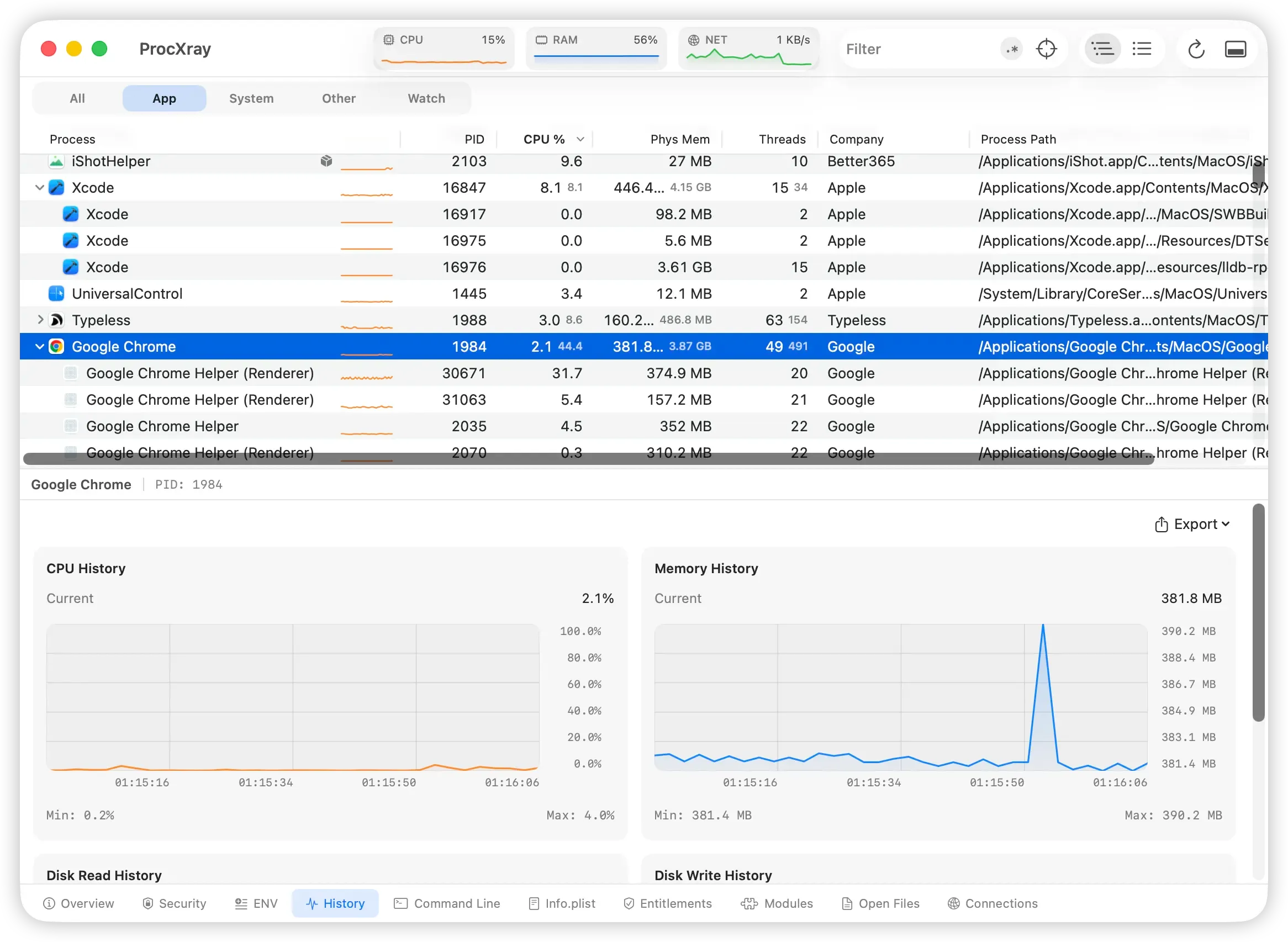
In this existing ProcXray screenshot, the selected Chrome process has a brief memory spike that returns near its previous level. A short spike alone does not establish a memory leak; compare repeated actions and a longer observation period. The process tree above shows Chrome’s helpers separately.
Step-by-Step Fixes
Apply in order, cheapest and least disruptive first.
1. Quit or restart the offending process
For a user app — a browser, a build tool, a chat client, a video encoder — quit it and watch the temperature drop. If the same app immediately heats up again on relaunch, you have a reproducible case to file a bug against the vendor or work around (e.g., a specific tab to close, a specific document to avoid loading, a specific feature to disable).
For a system daemon (mds, WindowServer, photoanalysisd), do not force-kill it as a first step — these processes are usually doing legitimate, finite work. Wait, or address the cause (e.g., let Spotlight finish indexing, let the Photos library finish analysis, restart the relevant subsystem with launchctl). The articles linked above for each daemon walk through the right approach.
2. Close browser tabs and disable suspect extensions
If the culprit is a browser helper, open the browser’s built-in task manager (Window menu → Task Manager in Chrome / Edge / Arc / Brave) and end the heaviest tab or extension row. See Chrome Helper Eating Memory on Mac for the full mapping workflow. Restarting the browser entirely resets every helper and is often faster than chasing one tab.
3. Let background system tasks finish, then verify they stopped
Spotlight indexing, Photos analysis, Time Machine backups, and software updates are all examples of finite background work that heats the Mac while it runs. Leave the Mac plugged in, open, and idle for an hour or two (overnight if the change was large — a new Photos library, a freshly restored backup), then check Activity Monitor again. If the same processes are still hot after a full overnight idle, treat that as a problem and triage the specific daemon.
4. Eliminate external heat sources
Move to a hard surface, clear the vents, unplug peripherals one at a time, swap the charger and cable. If the temperature drops within a minute or two of removing a specific accessory, you have your answer.
5. Reset SMC (Intel Macs only) or restart (Apple Silicon)
On Intel Macs, an SMC reset can fix cases where the fan controller has gotten stuck in a high-RPM state independent of actual temperature. The exact key combination depends on the model — Apple’s support article on SMC reset is the source of truth: Reset the SMC on an Intel-based Mac. Apple Silicon Macs have no SMC reset; a normal restart serves the same purpose.
6. Update macOS and key apps
Several past macOS releases shipped with WindowServer, mds, or graphics-driver regressions that caused heat issues for some users and were fixed in a follow-up release. The same is true of Chrome, Slack, Zoom, and Teams. If the heat problem started right after an update and matches reports from other users, check for a follow-up release.
7. Hardware service: dust, thermal paste, fan
If software triage exhausts every option and the Mac is more than a few years old, the cooling system itself is the next hypothesis. Authorized service can clean dust from the heatsink, replace dried thermal paste, and swap a failing fan. This is a real fix and not a cosmetic one — but it should not be your first move.
For broader Mac performance triage when heat is one of several symptoms, see how to fix a Mac running slow by killing the right processes.
FAQ
Why is my MacBook fan so loud all of a sudden?
If CPU load is low, check GPU activity and brief workload bursts, then room temperature and ventilation. If the fan remains unusually loud at idle, investigate cooling or hardware faults as well.
Is it safe for my Mac to run this hot?
Modern Macs are designed to throttle long before damage occurs — if the SoC gets too hot, it slows itself down, and in extreme cases the system shuts down. Short-term heat under heavy load is normal. Sustained heat over hours every day shortens battery life and may eventually affect other components, so it’s worth resolving rather than ignoring, but it isn’t an emergency.
Should I install a fan-control utility to keep my Mac quiet?
No. Tools that override the fan curve to keep RPMs down trade noise for higher SoC temperatures, which leads to earlier thermal throttling (the Mac gets slower) and over time may shorten hardware life. Find and fix the process causing the heat; don’t suppress the cooling response.
Why does kernel_task use so much CPU when my Mac gets hot?
kernel_task deliberately consumes CPU time to prevent heavier processes from running and to reduce heat. Apple documents this behavior in About the kernel_task process. When you see kernel_task high, the cause is heat somewhere else — often a hot charger, a marginal USB-C accessory, ambient heat, or another heavy process that has already pushed temperatures past a threshold.
My MacBook Air has no fan — why does it still get hot?
The fan-less MacBook Air (M1 and later) handles heat by passive dissipation into the chassis and by thermal throttling — slowing the SoC down — when needed. The diagnostic process is identical: find the process burning the most CPU, GPU, or power. The Mac just slows down quietly instead of making fan noise.
Can I see GPU usage per process on macOS?
Window → GPU History in Activity Monitor shows overall GPU activity. Its View menu also offers GPU process filters; available details depend on the Mac and macOS version. The gpu_power sampler in powermetrics reports system-wide GPU power, not per-process GPU power. Use the available process information and workload changes to narrow down the source.
Related guides
- kernel_task High CPU on Mac: What It Is and How to Fix It
- Mac Memory Pressure Red? How to Tell Memory Pressure from a Memory Leak
Sources and References
-
Apple: Activity Monitor — Energy
-
Apple: Activity Monitor — Processes
-
Apple Support — Operating environment and temperature for Mac notebooks
-
How to Monitor Processes on macOS: A Complete Developer Guide
Download ProcXray free → — see per-process CPU, GPU, and power in one view, with hours of history so you can catch the process that heated your Mac while you weren’t looking. macOS Sonoma+, Apple Silicon & Intel.